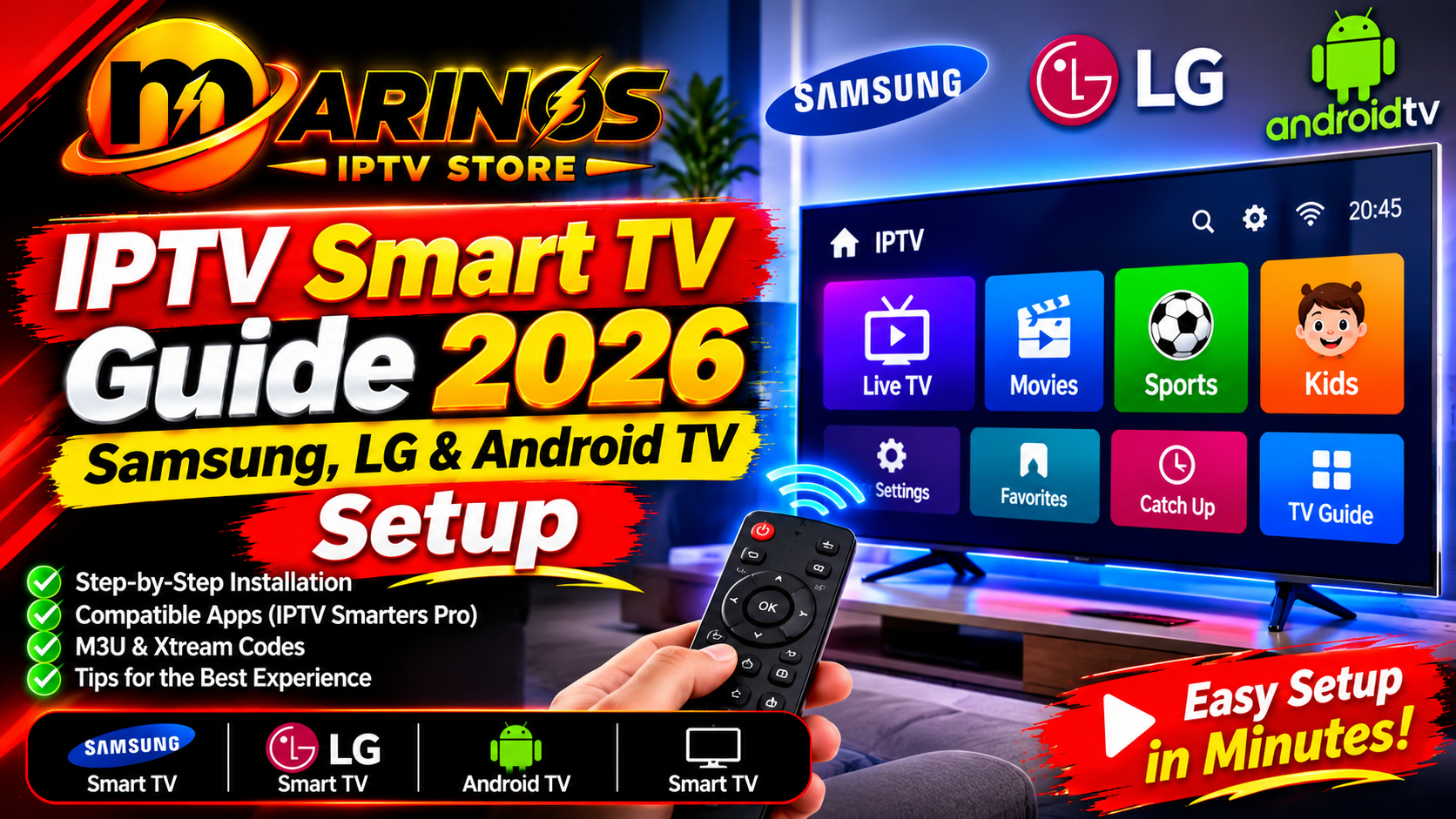
An IPTV Smart TV setup is the cleanest way to watch IPTV: no extra box, no extra remote, just an app on the TV you already own. Samsung, LG and Android/Google TV sets all run IPTV players, and most modern models decode 4K natively. This guide shows you how to set up IPTV on each type of Smart TV, which apps to use, and how to get the best picture with Marinios IPTV.
Which Smart TVs Work With IPTV?
Almost every Smart TV from the last few years can run an IPTV app:
| TV platform | Found on | IPTV app options |
|---|---|---|
| Tizen | Samsung Smart TVs | IBO Player and other store apps |
| webOS | LG Smart TVs | IBO Player and other store apps |
| Android TV / Google TV | Sony, TCL, Hisense, Philips and more | IPTV Smarters Pro, TiviMate, IBO Player |
| Fire TV Edition | Some Toshiba, Insignia, Hisense models | Same as Firestick |
| Roku TV | Roku-powered TVs | Limited — a Firestick or Android box is easier |
If your TV is older or its app store is limited, a Firestick or Android TV box is an inexpensive fix. See our IPTV Firestick guide.
Best IPTV Smart TV Apps by Brand
- Samsung (Tizen): IBO Player is the most popular choice and supports 4K.
- LG (webOS): IBO Player works the same way as on Samsung.
- Android TV / Google TV: TiviMate for the best guide, IPTV Smarters Pro for simplicity.
Our best IPTV player guide compares every app in detail.
How to Set Up IPTV on a Samsung Smart TV
- Press the Home button and open Apps.
- Search for IBO Player and install it.
- Open the app. It displays your TV’s MAC address and device key — take a photo of the screen.
- Send that photo to Marinios IPTV support on WhatsApp, or add your playlist on the player’s official website using those details.
- Restart the app. Your Marinios IPTV channels, movies, series and EPG load automatically.
How to Set Up IPTV on an LG Smart TV
- Open the LG Content Store from the Home menu.
- Search for IBO Player and install it.
- Open the app and note the MAC address and device key.
- Send them to our support team or add your playlist on the player’s official website.
- Reopen the app to load your channels.
How to Set Up IPTV on Android TV or Google TV
- Open the Google Play Store on your TV.
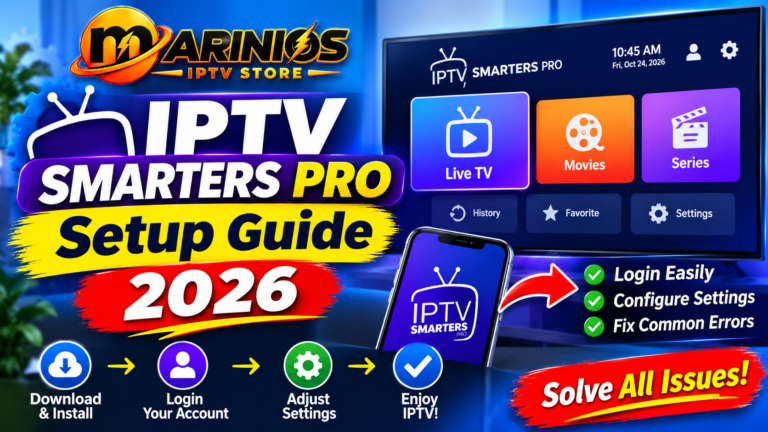
- Search for TiviMate or IPTV Smarters Pro and install it.
- Open the app and choose Xtream Codes login.
- Enter the username, password and server URL from your Marinios IPTV email.
- Wait a minute for channels and the EPG to load, then start watching.
Android TV sets usually have an Ethernet port — use it for the most stable 4K. For detailed steps in Smarters, see our IPTV Smarters Pro guide.
Send us a photo of your TV screen — we do the rest
Free Marinios IPTV trial with Smart TV setup help on WhatsApp
Get Trial + Setup Help See PlansBest Picture Settings for IPTV on a Smart TV
- Picture mode: choose Standard, Movie or Filmmaker rather than Vivid for natural colours.
- Motion smoothing: reduce or turn off for movies; a light setting can help fast sports.
- HDR: keep enabled if your TV supports it and the stream offers HDR.
- Sharpness: keep low — high sharpness exaggerates compression.
- Network: Ethernet first; otherwise 5 GHz Wi-Fi close to the router.
Marinios IPTV streams in 4K, UHD and FHD with adaptive quality. For more on what real 4K requires, read our IPTV 4K guide.
Common IPTV Smart TV Problems
| Problem | Likely cause | Fix |
|---|---|---|
| Playlist not showing | MAC not activated yet | Confirm MAC/device key, restart the app |
| App missing from store | Region or old TV model | Use a Firestick or Android box |
| Buffering | Weak Wi-Fi | Ethernet cable or 5 GHz |
| No sound on some channels | Audio format | Change audio output to PCM in TV settings |
| Old EPG | Guide not refreshed | Reload playlist or refresh EPG in the app |
More fixes in our guide to IPTV buffering.
Smart TV App or Streaming Stick?
A Smart TV app is simplest — one remote, no extra hardware. A Firestick or Android box is better if your TV is older, has a slow processor, or its app store lacks good IPTV players. Many Marinios IPTV customers use both: the Smart TV app in the living room and a Firestick in the bedroom, on a 2-device plan.
IPTV on Older Smart TVs
If your Smart TV is more than six or seven years old, its app store may no longer receive new IPTV apps, or its processor may struggle with 4K and large channel lists. You have three easy options for an IPTV Smart TV experience on an older set:
- Firestick 4K Max — plugs into HDMI and runs every major player. See our IPTV Firestick guide.
- Android TV box — usually has an Ethernet port, great for stable 4K.
- Google TV streamer or similar — runs TiviMate and IPTV Smarters Pro from the Play Store.
Your Marinios IPTV login works the same way on all of them.
Sound Settings for IPTV on a Smart TV
Some channels broadcast surround sound formats that older TVs or soundbars do not pass through correctly, causing silence or crackling. If you hear nothing on certain channels:
- Open your TV’s Sound → Expert / Advanced settings.
- Set Digital output audio format to PCM or Auto.
- Turn off audio passthrough in the IPTV app if it has the option.
- Restart the app and test again.
Setting Up IPTV Smart TV for the Whole Family
- Favorites: add each family member’s go-to channels so they appear first.
- Parental controls: set a PIN and lock categories that are not suitable for children.
- Several TVs: install the app on each TV and use one Marinios IPTV login; choose a 2- or 3-device plan so they can watch at the same time.
- Guide: use the 7-day EPG to plan family films and big games.
Samsung vs LG vs Android TV for IPTV
| Platform | Strengths | Limits |
|---|---|---|
| Samsung (Tizen) | Fast menus, great 4K decoding | Fewer IPTV apps than Android |
| LG (webOS) | Excellent picture, simple interface | App choice similar to Samsung |
| Android / Google TV | Widest app choice, TiviMate, Smarters | Performance varies by model |
Whichever you own, an IPTV Smart TV setup with Marinios IPTV delivers 25,000+ channels, 100,000+ movies and series and 4K streams. For details on 4K requirements, see the overview of Smart TV platforms on Wikipedia, and our IPTV 4K guide.
IPTV Smart TV FAQ
Can I watch IPTV on a Samsung Smart TV?
Yes. Install IBO Player from the Samsung app store and add your Marinios IPTV playlist.
Can I watch IPTV on an LG Smart TV?
Yes, using IBO Player from the LG Content Store.
Do I need a box for IPTV on a Smart TV?
Not usually. A box is only needed if your TV’s app store lacks a good IPTV player.
Does IPTV work in 4K on Smart TVs?
Yes. Most modern 4K Smart TVs decode 4K HEVC streams natively.
Will Marinios IPTV help me set up my TV?
Yes — send a photo of the app screen on WhatsApp and our team will guide you.
Conclusion
Setting up IPTV on a Smart TV takes a few minutes: install IBO Player on Samsung or LG, or TiviMate/Smarters on Android TV, add your Marinios IPTV details, and use Ethernet for the best 4K. Start with a free trial and our team will help you get your TV ready.
Your Smart TV, upgraded
25,000+ channels · 100,000+ VOD · 4K · from $5.67/month
Get Marinios IPTV Free Trial